How to Transfer Data to New Phone: Complete Guide for iPhone and Android
Getting a new phone? Learn the fastest and safest ways to transfer all your data, photos, apps, and settings from your old phone to your new one - whether switching between iOS and Android or staying with the same system.
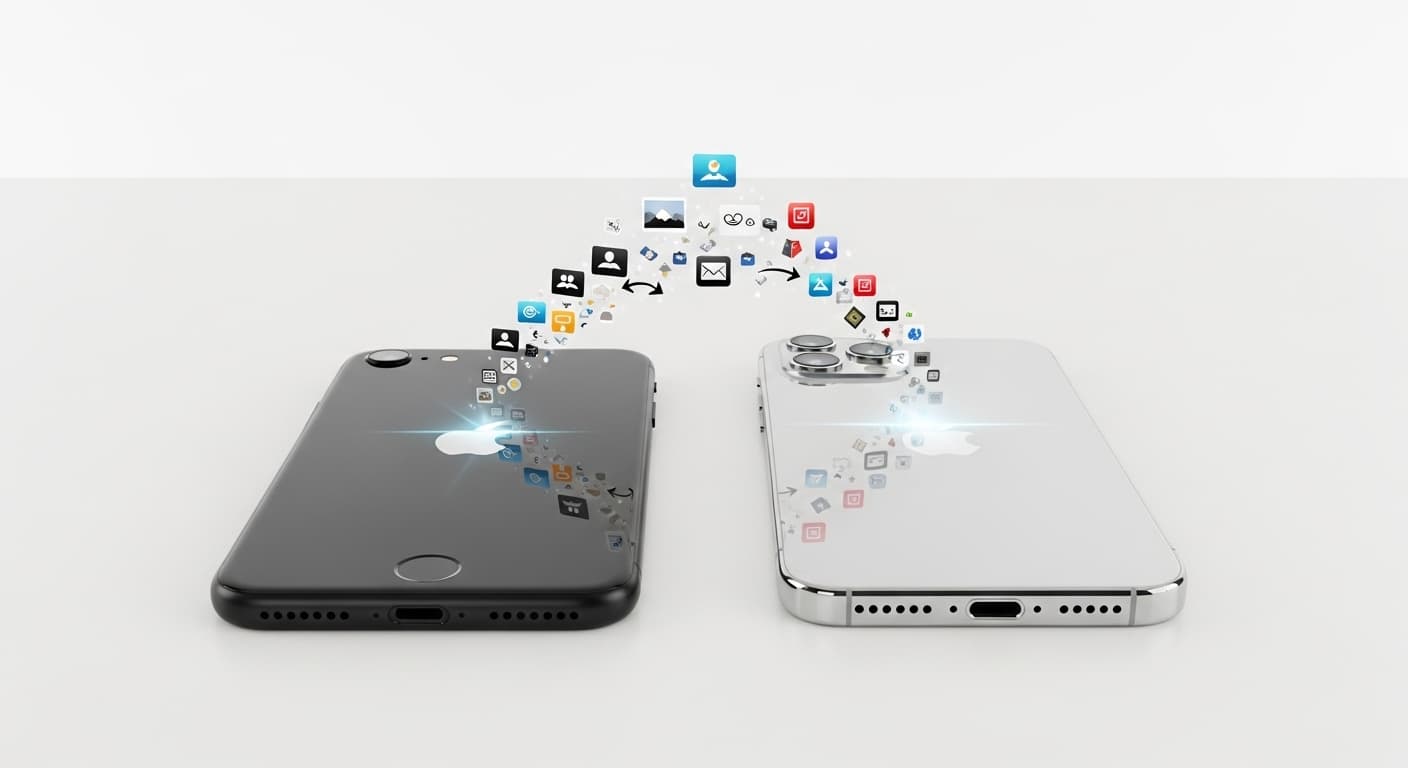
Switching to a new phone should be exciting, not stressful. With the right approach, you can transfer everything from your old phone - contacts, photos, messages, apps, and settings - to your new device seamlessly. This comprehensive guide covers all transfer methods for every scenario, whether you're moving from iPhone to iPhone, Android to Android, or switching between platforms.
Before You Start: Essential Preparation
Proper preparation ensures a smooth transfer and prevents data loss.
1Backup Your Old Phone
Create a complete backup before starting the transfer process.
- iPhone: Settings > [Your Name] > iCloud > iCloud Backup > Back Up Now
- Android: Settings > System > Backup > Back up now (Google)
- Samsung: Settings > Accounts > Samsung account > Samsung Cloud
- For complete backup, use iTunes (PC) or Finder (Mac) for iPhone
- Android: Use manufacturer's backup app for fullest backup
- Note: Some app data requires separate backup within each app
2Prepare Both Phones
Ensure both devices are ready for the transfer.
- Charge both phones to at least 50% (preferably keep plugged in)
- Connect both to same Wi-Fi network (or use cellular with unlimited data)
- Update old phone to latest OS version for best compatibility
- Know your Apple ID/Google account passwords
- Disable Find My iPhone or Google Find My Device temporarily if needed
- Have enough storage on new phone for all your data
iPhone to iPhone Transfer
Apple provides seamless transfer options for moving between iPhones.
1Quick Start (Recommended)
The fastest and most complete transfer method for iPhones.
- Turn on new iPhone and place it near your old iPhone
- Quick Start screen appears on old iPhone - tap Continue
- Use old iPhone to scan the animation on new iPhone
- Enter old iPhone passcode on new iPhone when prompted
- Set up Face ID or Touch ID on new iPhone
- Choose "Transfer from iPhone" for direct device-to-device transfer
- Keep phones close together until transfer completes (15-60+ minutes)
2iCloud Restore Method
Alternative method using your iCloud backup.
- Ensure recent iCloud backup exists on old phone
- During new iPhone setup, choose "Restore from iCloud Backup"
- Sign in with Apple ID
- Select the most recent backup
- Stay connected to Wi-Fi until restore completes
- Apps will re-download from App Store automatically
- Some data continues downloading in background for hours
Android to Android Transfer
Google and manufacturers provide various transfer tools.
1Google's Built-in Transfer
Works for most Android phones using Google account.
- During new phone setup, tap "Copy apps and data"
- Connect to old phone via cable (USB-C to USB-C or adapter)
- Alternatively, select "Can't use old phone" to restore from Google backup
- Sign in with Google account on new phone
- Select what to transfer: apps, contacts, messages, etc.
- Wait for transfer to complete (varies by data amount)
- Some apps need manual login on new phone
2Samsung Smart Switch
Samsung's comprehensive transfer tool - works with any Android or iPhone.
- Download Smart Switch on both phones
- Open Smart Switch on both devices
- On new phone: tap "Receive data"
- On old phone: tap "Send data"
- Choose connection method: wireless or cable (cable is faster)
- Select data types to transfer
- Wait for transfer - progress shown on both screens
Cross-Platform Transfer: iPhone to Android
Switching from iPhone to Android requires special approaches.
1Google Drive Method
Use Google's ecosystem to transfer essential data.
- On iPhone: Download Google Drive app
- Sign in with Google account (create one if needed)
- Go to Google Drive Settings > Backup > Start Backup
- Select Contacts, Calendar, Photos to backup
- Wait for backup to complete (photos take longest)
- On new Android: Sign in with same Google account
- Contacts and calendar sync automatically
- Photos appear in Google Photos app
2Samsung Smart Switch from iPhone
For Samsung phones, Smart Switch handles iOS transfers well.
- On Samsung: Open Smart Switch, select "Receive data"
- Select "iPhone/iPad"
- Choose cable (Lightning to USB-C) or wireless
- For wireless: scan QR code shown on Samsung with iPhone
- For cable: allow Trust on iPhone when connected
- Select data to transfer
- Some apps will download Android equivalents automatically
Cross-Platform Transfer: Android to iPhone
Apple's Move to iOS app helps Android users switch.
1Move to iOS App
Apple's official app for Android-to-iPhone transfer.
- On Android: Download "Move to iOS" from Play Store
- Start setting up new iPhone until "Apps & Data" screen
- Select "Move Data from Android"
- On iPhone: note the code displayed
- On Android: Open Move to iOS, enter the code
- Connect to temporary Wi-Fi network iPhone creates
- Select data to transfer: contacts, messages, photos, etc.
- Wait until loading bar completes on both devices
2Manual Transfer Methods
Alternative approaches for specific data types.
- Contacts: Export as vCard from Android, import to iCloud
- Photos: Use Google Photos - install on iPhone to access all photos
- Calendar: Sync to Google Calendar, add Google account to iPhone
- Music: Upload to Apple Music or use YouTube Music on both
- WhatsApp: Use official WhatsApp transfer feature (chat history)
- Apps: Manually find iOS equivalents - purchase history doesn't transfer
What Transfers and What Doesn't
Understanding transfer limitations prevents disappointment.
Usually Transfers Smoothly
- Contacts, calendar events, and reminders
- Photos and videos from camera roll
- Messages and iMessages (iOS to iOS only for full history)
- Email accounts and settings
- Basic phone settings and preferences
- Saved Wi-Fi passwords (same ecosystem only)
- Bookmarks from default browser
May Require Manual Setup
- App logins - most apps require signing in again
- Two-factor authentication - re-setup on new device
- Banking apps - often require re-verification
- Game progress - depends on if game uses cloud saves
- Streaming app downloads - need to re-download content
- Smart home app configurations
- Health and fitness data (limited cross-platform transfer)
Won't Transfer Cross-Platform
- Apps themselves - must re-download from new platform's store
- App purchase history - purchases don't transfer between iOS/Android
- Apple Pay/Google Pay cards - must set up fresh
- Platform-specific features (iMessage, FaceTime, etc.)
- DRM-protected content from one ecosystem to another
- Some specialized app data
Troubleshooting Transfer Issues
Common problems and solutions during phone transfer.
Transfer Stuck or Failed
- Restart both phones and try again
- Ensure both phones have enough battery (keep charging)
- Check Wi-Fi connection stability
- Try cable connection instead of wireless
- Reduce transfer size - transfer in smaller batches
- Clear cache on old phone before retrying
- Update both phones to latest OS version
Missing Data After Transfer
- Wait 24 hours - some data syncs slowly in background
- Check iCloud/Google sync settings on new phone
- Manually trigger sync: pull down on contacts/calendar
- Verify backup was complete on old phone
- Some apps need to be opened once to restore their data
- Contact data may be in different account than expected
After the Transfer
Important steps to complete after your data is transferred.
1Verify Data Transfer
Check that everything transferred correctly.
- Check contacts list - compare count with old phone
- Verify photo library - look for recent and old photos
- Open messages - confirm history is present
- Test calendar - check upcoming events
- Verify email accounts are working
- Check that favorite apps installed and working
- Test important app logins
2Secure Your Old Phone
Protect your data on the device you're no longer using.
- Keep old phone for 1-2 weeks in case you notice missing data
- Don't erase immediately - verify everything first
- Remove SIM card from old phone
- When ready: Factory reset old phone completely
- iPhone: Settings > General > Reset > Erase All Content
- Android: Settings > System > Reset > Factory data reset
- Remove old phone from your Apple ID/Google account
Conclusion
Transferring data to a new phone is easier than ever with the built-in tools provided by Apple, Google, and phone manufacturers. Start with a complete backup, use the recommended transfer method for your situation, and verify everything transferred before wiping your old phone. If you encounter difficulties or have concerns about losing important data, professional assistance can ensure nothing is lost in the transition.
Our Professional Repair Services
Need expert help with this issue? Visit our service center!
Need Professional Help?
Need help transferring data to your new phone? Our Bahçelievler service center offers professional data transfer services - we ensure 100% of your transferable data moves safely to your new device. Stop by for quick, reliable assistance!